> ## Documentation Index
> Fetch the complete documentation index at: https://docs.piebald.ai/llms.txt
> Use this file to discover all available pages before exploring further.
# Tool calls
export const MuxVideo = ({playbackId, title = "Video demo"}) => ;
In Piebald chats, tool calls are treated as first-class citizens, with convenient ways to view tool call input, output, errors, etc.
### Tool calls are streamed
Available in Piebald Basic (Free)
Tool calls to the UI progressively as the model generates them. This can make agentic development feel faster because you can see tool calls right away instead of waiting for them to be fully finished streaming.
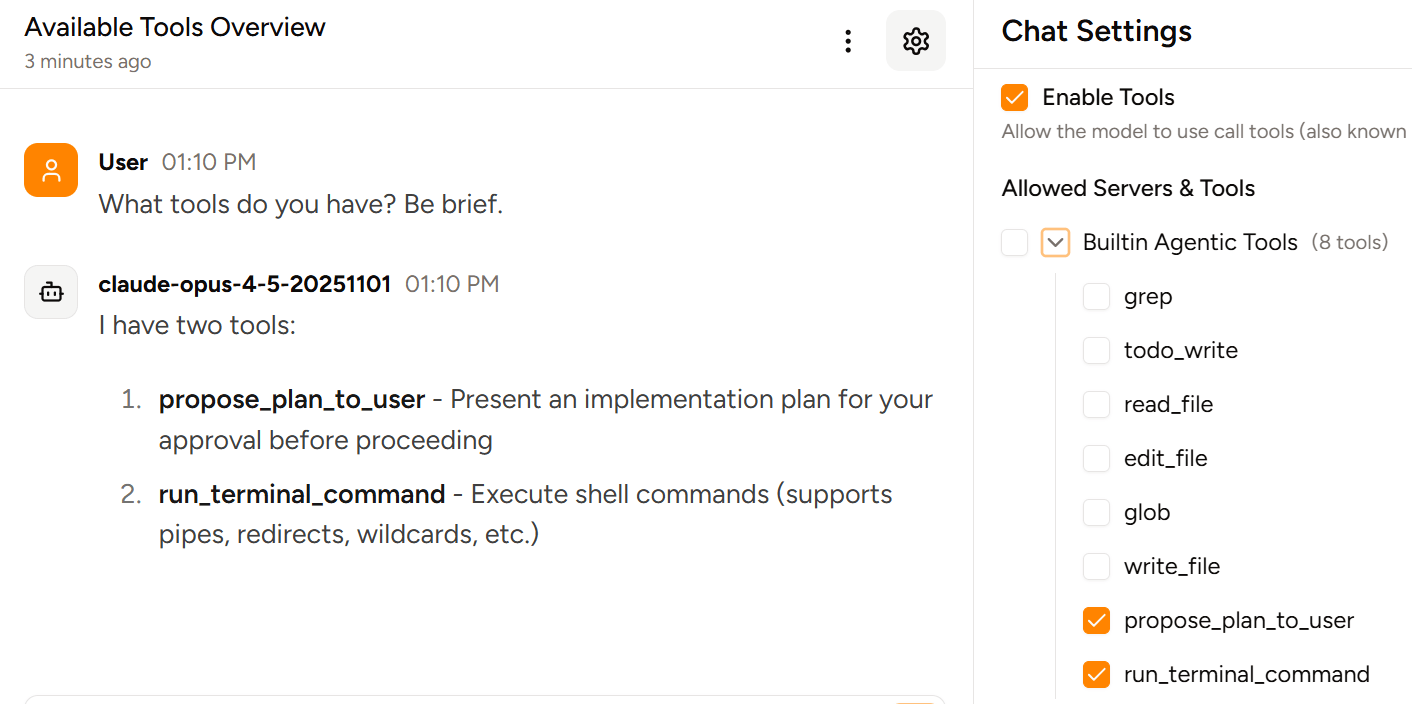
### Enabling/disabling individual tools
Available in Piebald Basic (Free)
Piebald allows you to disable individual MCP servers and tools or tool use altogether.
In a chat, open the configuration sidebar by clicking the icon in the top-right corner, go to the **Configuration** tab, and scroll to the bottom. You'll see a list of all enabled MCP servers and their tools:
 ### Re-executing tool calls
Available in [Piebald Pro](https://piebald.ai/pricing)
Tool calls can be **re-executed** any time after they finish running. This is useful if the model runs a command but you meant to make change to the environment before it ran it. For example, the model might try to run a certain command but it's not installed, so you installed it and then re-executed the tool call. That way the model never knew the command wasn't installed at first.
When a tool call is re-executed, it's marked as *stale*, to indicate that its latest output has never been sent to the model and that any subsequent messages were produced with the old output. Clicking "Regenerate" will regenerate the messages after the tool call.
Here's a demo of a tool call being re-executed:
### Tool call execution time
Available in Piebald Basic (Free)
On some tool calls (e.g. terminal commands), Piebald automatically records the length of time that the tool call takes to execute. The time is displayed in the tool call widget at the right of the arguments:
### Re-executing tool calls
Available in [Piebald Pro](https://piebald.ai/pricing)
Tool calls can be **re-executed** any time after they finish running. This is useful if the model runs a command but you meant to make change to the environment before it ran it. For example, the model might try to run a certain command but it's not installed, so you installed it and then re-executed the tool call. That way the model never knew the command wasn't installed at first.
When a tool call is re-executed, it's marked as *stale*, to indicate that its latest output has never been sent to the model and that any subsequent messages were produced with the old output. Clicking "Regenerate" will regenerate the messages after the tool call.
Here's a demo of a tool call being re-executed:
### Tool call execution time
Available in Piebald Basic (Free)
On some tool calls (e.g. terminal commands), Piebald automatically records the length of time that the tool call takes to execute. The time is displayed in the tool call widget at the right of the arguments:
 By default, this feature is disabled. You can enable this setting at **Settings → Chat Interface → Show Tool Execution Time**.