

Usage
Viewing all chats
To view all chats, hover the project/worktree and click the small chats icon:
Creating a new chat
Click the small new chat icon to create a new chat:
Hiding projects
Projects can be hidden even if they have active or backlog chats. Click the cog icon and choose Hide.
Showing hidden projects
If you’ve hidden a project or it’s been automatically hidden, you can show it again at any time. Click the “NN PROJECTS” dropdown at the top of the sidebar and choose the project:
Switching to the Code section
The Code section has all the tools you need to read and write code—file browser, code editor, Git viewer, code search, etc. To switch to the code view, click the small code icon:
Compact mode
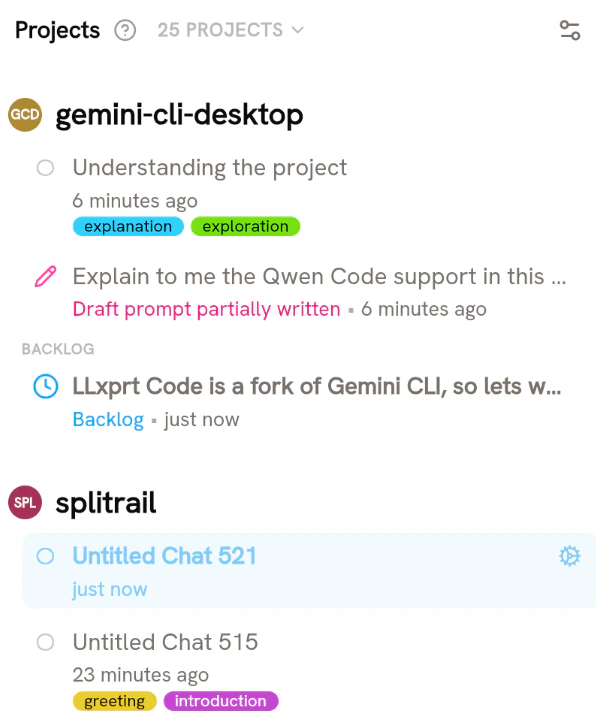
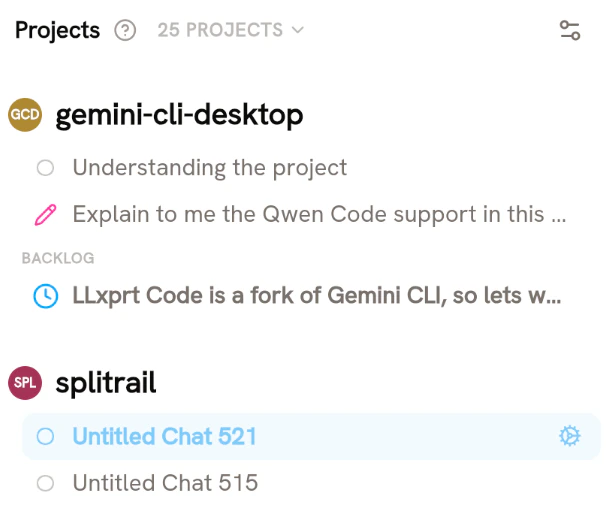
By default, lots of information about chats are displayed in the sidebar—chat tags, last modified date, etc. If you don’t want to see all this information, and you just care about seeing the chat title, you can enable compact mode.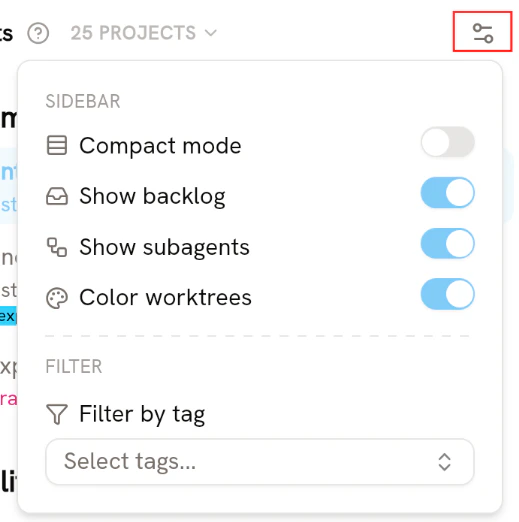
Disabling worktree coloring
If you don’t like worktrees being colored, you can disable the Color worktree configuration option in the configuration panel shown above. Worktrees will then be displayed in the same color as active chats (e.g. the “Understanding the project” chat above).Filtering by chat tags
If you’ve assigned tags to your chats, you can filter all chats by those tags. If you have compact mode off, you can click a tag to filter by it. Clicking other tags will filter by those tags too—e.g. clicking the “greeting” tag would filter for chats that have that tag, and clicking the “introduction” tag would filter for chats that have both tags. Clicking on either one would remove that tag from the filter. To filter by any tag, and to see the full list of tags being used for filter, open the configuration panel by clicking the button in the top right corner. Then open the “Filter by tag” dropdown at the bottom of the panel.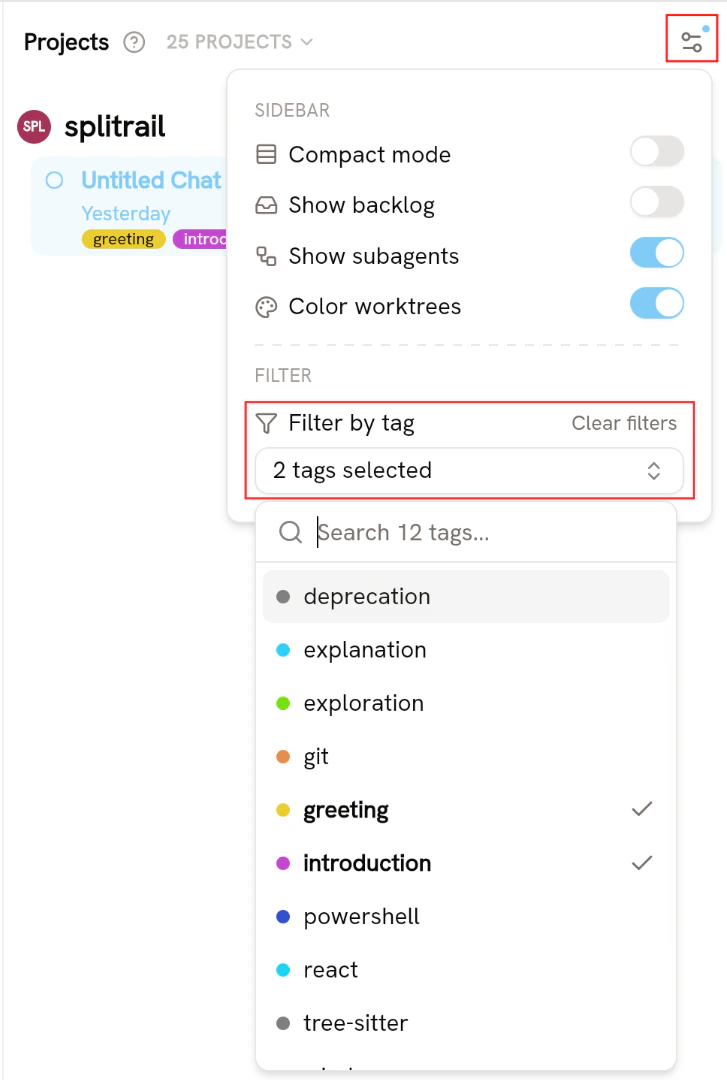
Other chat details displayed in the sidebar
The sidebar also displays other details about chats:- Subagent chats are displayed under their respective parent chats. They’re displayed in smaller text and in a more narrow row.
- Chats with goals display with a denim-colored “active goal” indicator.